Translate FlinkISO’s application labels and messages into the languages your team uses. Administrators and super users manage language catalogs; each user chooses an available language from the globe menu in the top navigation.
Choose your application language
- Open the globe menu. Find the globe icon after the database icon in the top navigation.
- Select an available language. A check mark identifies the selected language. Your choice is saved to your user account.
- Continue working. Other users keep their own language preferences. Select English from the same menu to return to English.
Administrators and super users also see Add language and Update PO file in this menu. These management actions are not available to regular users.
1. Add a new language
- Open Add language. Use the globe menu to open the Languages page.
- Find the language in the reference table. Search by name or three-letter code. Select Use this code to fill the name, code and available plural rule together.
- Review the details. You can change the display name, for example from German to Deutsch or Marathi to मराठी. Keep the code consistent with the translation folder.
- Add the language. Select Add language. FlinkISO creates its PO catalog and opens the translation editor.

If the language is not in the table
The table is a reference, not a restriction. Enter a language name and a unique code containing three lowercase letters. Use the standard three-letter language code where available. Enter the language’s plural rule if none is provided automatically. A code already used by another language cannot be added again.
| Language | Code | PO file location |
|---|---|---|
| English | eng | app/Locale/eng/LC_MESSAGES/default.po |
| Deutsch / German | deu | app/Locale/deu/LC_MESSAGES/default.po |
| मराठी / Marathi | mar | app/Locale/mar/LC_MESSAGES/default.po |
2. Understand and add PO / POT files
| File | Purpose | Location |
|---|---|---|
| POT template | The shared list of original application messages. It is the starting point for all languages. | app/Locale/default.pot |
| PO catalog | One language’s original messages and their translations. | app/Locale/<code>/LC_MESSAGES/default.po |
You do not need server access to create the normal translation files. Adding a language creates its PO catalog. Starting AI translation generates a fresh POT template from the application and shares it with AI when you select the attachment checkbox. Manual editing uses the messages in the current template.
Translate the PO file, not the original messages in the POT template. In a PO file, msgid contains the original text and msgstr contains its translation. Keep msgid, any msgctxt and any msgid_plural unchanged.
Use an existing PO file from a translator
The current language editor does not provide a general PO/POT upload button. If a translator has prepared a complete PO file in an external editor, ask your server administrator to back up the existing catalog and copy the replacement to the matching language folder as default.po. Add the language through FlinkISO as well so it appears in the globe menu. A POT file belongs at the shared template location, not in place of a translated PO file.
The replacement PO must contain the correct language and plural headers and match the application’s original messages. If the installation also has a compiled default.mo file, the administrator must rebuild or remove the stale compiled file and refresh the translation cache as part of the replacement. Saving through FlinkISO’s editor handles its catalog cache automatically.
3. Translate with AI
First ask an administrator to configure and enable the application’s AI provider. See AI Setup for the existing local or cloud provider settings.
- Open the AI translation panel. On the Languages page, select Translate PO file with AI.
- Select the target language. Add it first if it is not available in the target-language list.
- Attach the application template. Check Share application POT file with AI. FlinkISO generates the template itself; you do not need to upload a file.
- Start translation. Select Translate and save and keep the page open. The application sends the catalog in batches and displays progress.
- Wait for completion. Each accepted batch is saved into the selected language’s PO file. At completion, the translation button is disabled for that language on the current page and Save PO file is highlighted.
- Download and review. Select Save PO file if you want a local copy. The application catalog is already saved; this button downloads the translated PO file. Open Update PO file to review the wording.
If a batch fails, read the message and select Retry to continue the current job. Previously accepted batches remain saved. If you closed the page, check the existing PO catalog before starting another translation. The configured AI provider receives the catalog text when you share it.
4. Translate manually without AI
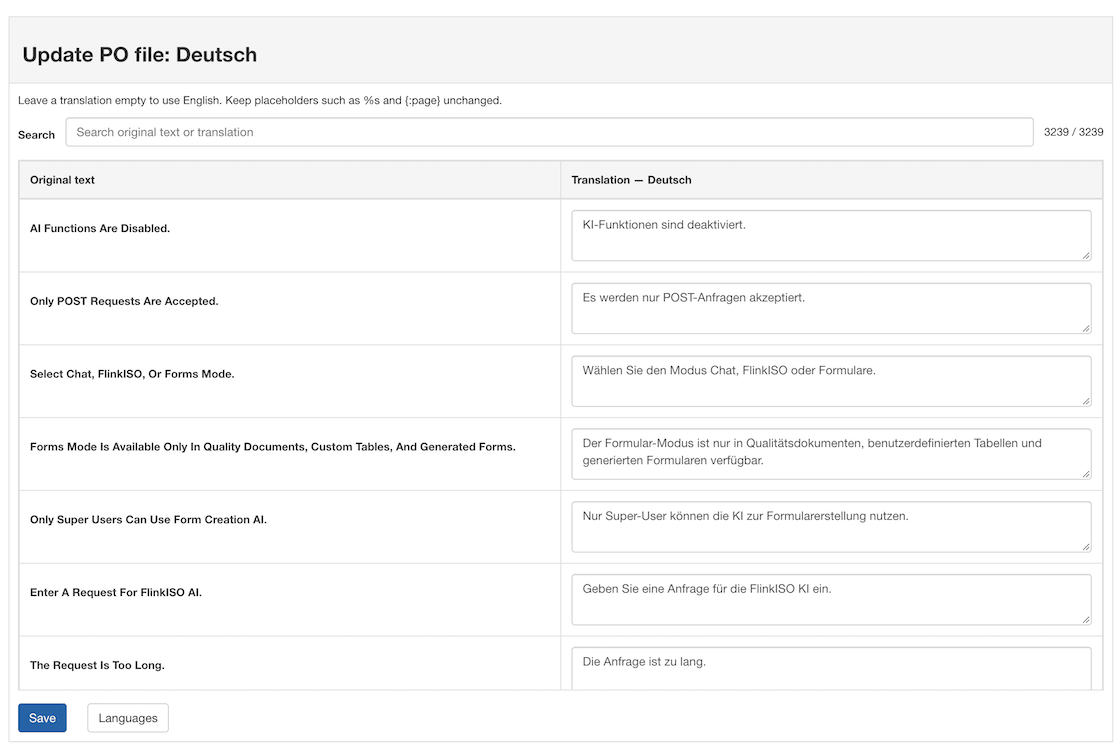
- Open the catalog. On the Languages page, select Update PO file beside the language.
- Find the message. Search the original text or an existing translation. The original text appears on the left and the editable translation on the right.
- Enter the translated wording. Edit as many entries as needed. A language with plural messages shows a separate field for each required plural form.
- Save your changes. Select Save below the editor. You can translate a few entries at a time and return later.
- Check the application. Choose the language from the globe menu and reload the relevant page to review it in context.
Manual translation does not require AI or an uploaded file. You can also use this editor to correct AI-generated wording. Leave an entry empty to use its English original.
Keep placeholders intact
Placeholders such as %s, %d, %1$s and {:page} are replaced with names, counts or other values at runtime. Preserve each placeholder exactly, including its type and numbering. Keep any HTML tags and attributes intact when editing a PO file.
What does Plural forms mean?
Plural rules select the correct wording for a number, such as “1 document” and “2 documents.” They apply to messages with singular and plural translations; ordinary labels do not need different forms.
nplurals=2; plural=(n != 1);For English, German and Marathi, this rule provides two forms: the first for 1 and the second for other counts. nplurals is the number of forms and n is the count. Other languages can use different rules: Japanese, for example, uses nplurals=1; plural=0;.
The reference table displays known rules and copies them with Use this code. Typing a listed code also fills its available rule. If no rule is listed, enter the correct rule manually. The field remains editable.
What translation changes
- Translation changes the application labels and messages included in the catalog.
- It does not automatically translate customer records, uploaded documents, names or text entered by users.
- Language selection is personal; editing a PO catalog affects everyone who uses that language.
- New messages added by an application update may remain in English until their translations are added.
Common questions and troubleshooting
| Question or symptom | What to do |
|---|---|
| I cannot see Add language or Update PO file. | Sign in as an administrator or super user. Regular users can select an available language but cannot manage catalogs. |
| My language is missing from the reference table. | Enter its name, unique three-letter code and plural rule manually. The table does not limit which languages can be added. |
| Some labels are still in English. | Search the original wording in Update PO file. Add any missing translation. If the wording is absent from the catalog, it may be new application text, user-entered data or a label that still needs translation support. |
| The catalog changed before I saved. | Reload the editor to load the current file, then reapply your changes. Avoid manual edits while AI is updating the same language. |
| AI translation stopped. | Check the displayed error and provider configuration, then use Retry for the current job. Accepted batches have already been saved. |
| The application cannot write a PO or POT file. | Ask the server administrator to give the application’s web-server account write access to the relevant Locale folders. Users do not need direct server access for normal editing. |
| I want to return to English. | Open the globe menu and select English. |