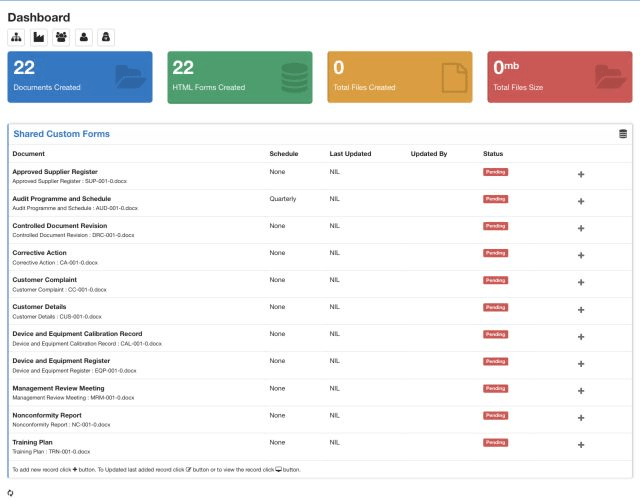
The dashboard is the starting point after login. Its content depends on the user’s role and sharing rules. Administrators see setup shortcuts and broader application menus; other users see the forms, documents and actions shared with them.
Dashboard areas
| Area | Purpose |
|---|---|
| Application menu | Dashboard, standards, categories, approval processes, documents, processes, custom forms and PDF templates. |
| Master shortcuts | Locations or branches, departments, employees, users and user-session or audit records. |
| Shared Custom Forms | Forms available to the signed-in user with schedule, last update, status and add/edit/view actions. |
| Counters | Document, HTML form and file totals for the application. |
| User menu | Profile and account actions available to the current user. |
Work with index pages
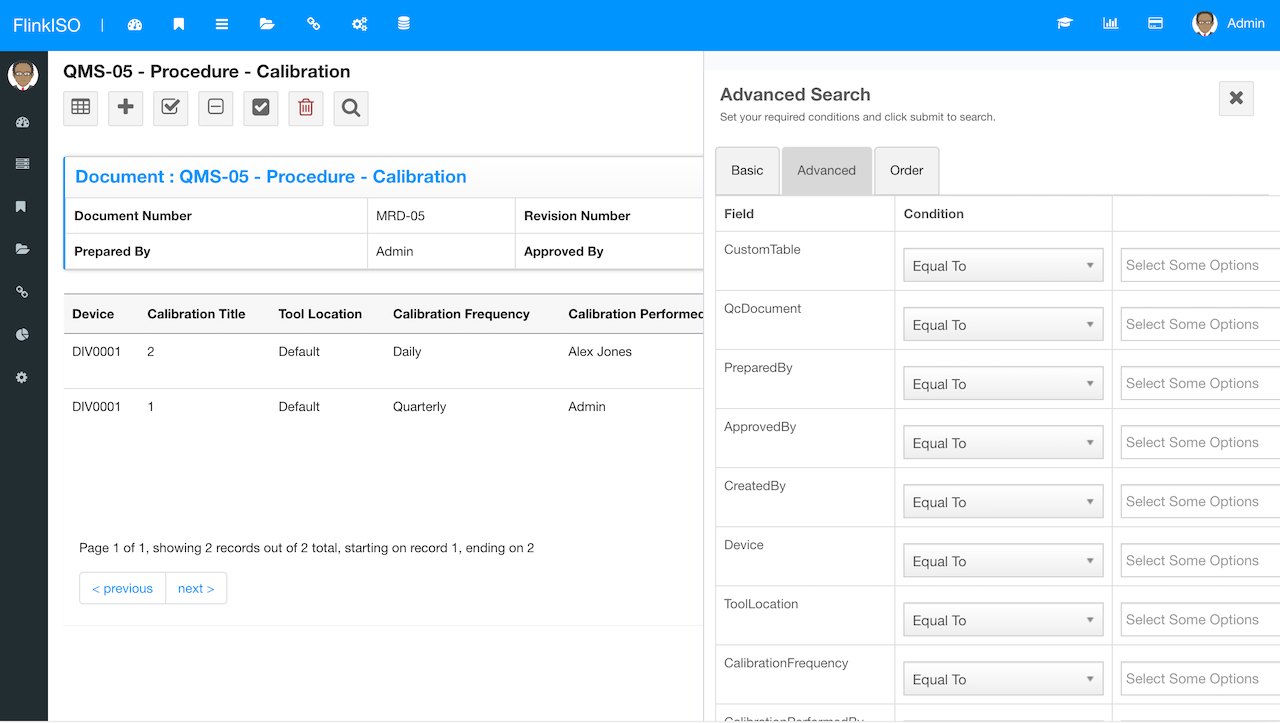
- Use the add action to create a record. The edit and view actions appear only when permitted.
- Type into the quick-search field to filter the current table.
- Select a column heading to sort the displayed records.
- Open advanced search to combine conditions from the current table and linked records.
- Run reports or export the filtered records when those actions are enabled.
Action icons
The exact icons vary by module, but the common actions are Add, Index, Reports, View or Configure, Rebuild or Unlock, PDF Template and Add Child. Hover over an icon in the application to see its label before acting.
Permissions apply everywhere. If a menu, button or record is missing, first confirm that the user has access to the document or custom table and belongs to a shared location, department, designation or user list.