Choose how AI will run
| Provider | Use it when | What you supply |
|---|---|---|
| Cloud / OpenAI-compatible | Your organisation already uses a hosted service that accepts OpenAI-style chat-completion requests. | API base URL, exact text and vision model names, and an API key. |
| Self-hosted AI (Ollama) | You want model inference on infrastructure controlled by your organisation. | A reachable Ollama API URL plus installed text and vision models. A key is normally not required. |
Use a separate AI server
For better application performance, do not run a production Ollama workload on the same server as FlinkISO. AI inference can consume sustained CPU, system memory, disk bandwidth and GPU memory. A separate host keeps document editing, forms, approvals and scheduled work responsive while AI is processing a long request.
The AI API URL must be reachable from the FlinkISO service that sends the request. http://127.0.0.1:11434 is valid only when Ollama and that service run on the same host. With the recommended separate AI server, use its reachable private address or a secured HTTPS endpoint. Do not expose the unauthenticated Ollama port directly to the public Internet.
Practical starting hardware
Model size, quantisation and context length determine the actual requirement. The following is a practical minimum for the example 7B–8B models in this guide; larger models need more memory.
| Resource | Minimum starting point | Recommended for regular use |
|---|---|---|
| Processor | 4 modern 64-bit CPU cores | 8 or more modern CPU cores |
| System memory | 16 GB RAM | 32 GB RAM or more |
| Storage | 25 GB free SSD space | 50 GB or more free SSD space |
| GPU | Optional; CPU inference is supported but slower | Supported GPU with at least 12 GB VRAM for faster 7B–8B text and vision work |
| Network | Reliable private connectivity between services | Private network or VPN, with HTTPS when traffic crosses network boundaries |
The two example model downloads currently use about 11.2 GB before runtime overhead and working files. Increase RAM, VRAM and storage when using larger models, longer context windows, more PDF pages or concurrent requests.
Install Ollama on a separate Linux server
The following basic flow follows the official Ollama Linux guide. Run it on the dedicated AI server, not on the FlinkISO application server.
- Install Ollama.
curl -fsSL https://ollama.com/install.sh | sh - Enable and start the service.
sudo systemctl enable --now ollama sudo systemctl status ollama - Download a text model and a vision model. These names are examples that match the fields shown later.
ollama pull qwen3:8b ollama pull qwen2.5vl:7b ollama list - Verify the local API.
curl http://127.0.0.1:11434/api/tags
The example text model is approximately 5.2 GB and the vision model approximately 6.0 GB. Model names entered in FlinkISO must exactly match the names returned by ollama list.
Allow the AI service to reach Ollama
Ollama listens on 127.0.0.1:11434 by default. On a separate Linux host, add a systemd override only when network access is required:
sudo systemctl edit ollama.serviceAdd:
[Service]
Environment="OLLAMA_HOST=0.0.0.0:11434"
Then reload and restart:
sudo systemctl daemon-reload
sudo systemctl restart ollama11434 only from the server or gateway that sends FlinkISO AI requests. Prefer a private subnet, VPN, firewall allow-list or authenticated HTTPS reverse proxy. The Ollama server configuration guide explains OLLAMA_HOST and service environment variables.Configure AI in FlinkISO
- Sign in with the MR or administrator account.
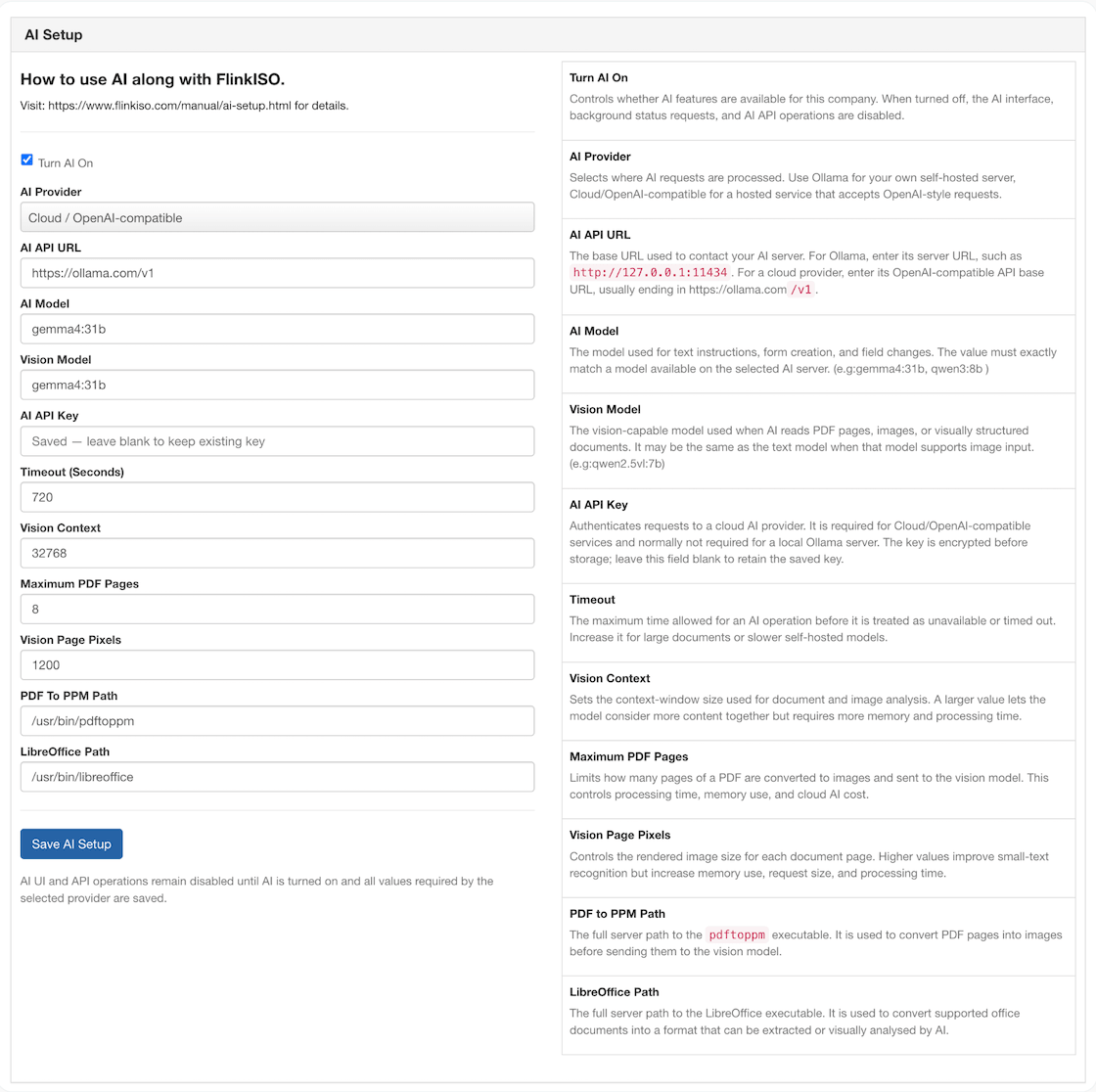
- Open the user menu and select AI Setup.
- Select the required AI Provider.
- For Ollama or a cloud provider, complete the provider fields described below.
- Select Turn AI On, then choose Save AI Setup.
| Setting | How it is used | Typical value |
|---|---|---|
| AI API URL | Base URL used to reach the selected AI server. | Ollama: http://ai-server:11434Cloud: the provider’s OpenAI-compatible base URL, commonly ending in /v1. |
| AI Model | Text instructions, form creation and field changes. | qwen3:8b, or the exact provider model name. |
| Vision Model | PDF pages, images and visually structured documents. | qwen2.5vl:7b, or another model that supports image input. |
| AI API Key | Authenticates a cloud/OpenAI-compatible request. | Required for cloud providers; normally blank for Ollama. The saved key is encrypted. Leave it blank later to retain the stored key. |
| Timeout | Maximum time allowed for an AI operation. | Default 360 seconds; allowed range 30–1800. |
| Vision Context | Context window available for visual document analysis. | Default 32768; allowed range 4096–131072. |
| Maximum PDF Pages | Limits pages converted and sent for vision processing. | Default 8; allowed range 1–50. |
| Vision Page Pixels | Rendered page size used for visual reading. | Default 1200; allowed range 600–2400. |
| PDF to PPM Path | Converts PDF pages to images. | /usr/bin/pdftoppm |
| LibreOffice Path | Converts supported office documents for extraction or visual analysis. | /usr/bin/libreoffice |
Higher page counts, page-pixel values and context sizes increase memory use, request size and processing time. Begin with the defaults and raise them only after testing representative documents.
Connect a cloud OpenAI-compatible provider
- Confirm that the provider supports OpenAI-compatible streamed chat completions and JSON responses.
- Create an API key with only the permissions required for model inference.
- Enter the provider’s API base URL. FlinkISO appends
/chat/completionsunless that path is already present. - Enter exact text and vision model identifiers available to the account.
- Enter the API key, retain the document-processing defaults, turn AI on and save.
Verify the connection
- Reopen AI Setup and confirm that AI remains turned on.
- Open a supported quality document or generated form where the AI control is available.
- Start with a short text-only request. Confirm that a response is returned before testing a document.
- Test a small PDF or image with the vision option and confirm that the selected vision model is used.
- Review the proposed result before allowing a form rebuild or field change.
FlinkISO keeps the local request history and applies its normal authorisation rules. Only an MR user can rebuild a generated form from an AI proposal.
Troubleshooting
| Message or symptom | Check |
|---|---|
| AI functions are disabled | Select a provider, complete every required field, select Turn AI On and save. For local AI, confirm that the configured server is reachable from FlinkISO. |
| Connection refused or timed out | Check the AI API URL from the service that sends the request, the Ollama service status, firewall rule, reverse proxy and timeout. |
| Model not found | Run ollama list and copy the exact model name, including its tag, into FlinkISO. |
| Cloud provider rejects the key | Create or copy a valid key, confirm endpoint access, then enter the key again in AI Setup. |
| Text works but document analysis fails | Confirm the vision model supports images, verify the PDF to PPM and LibreOffice paths, and test with fewer pages. |
| Responses are very slow | Use the separate AI server, reduce context/pages/pixels, choose a smaller model, or add a supported GPU. |
| AI is busy | Wait for the current generation or stop it before starting another. A single loaded CPU model may process requests serially. |