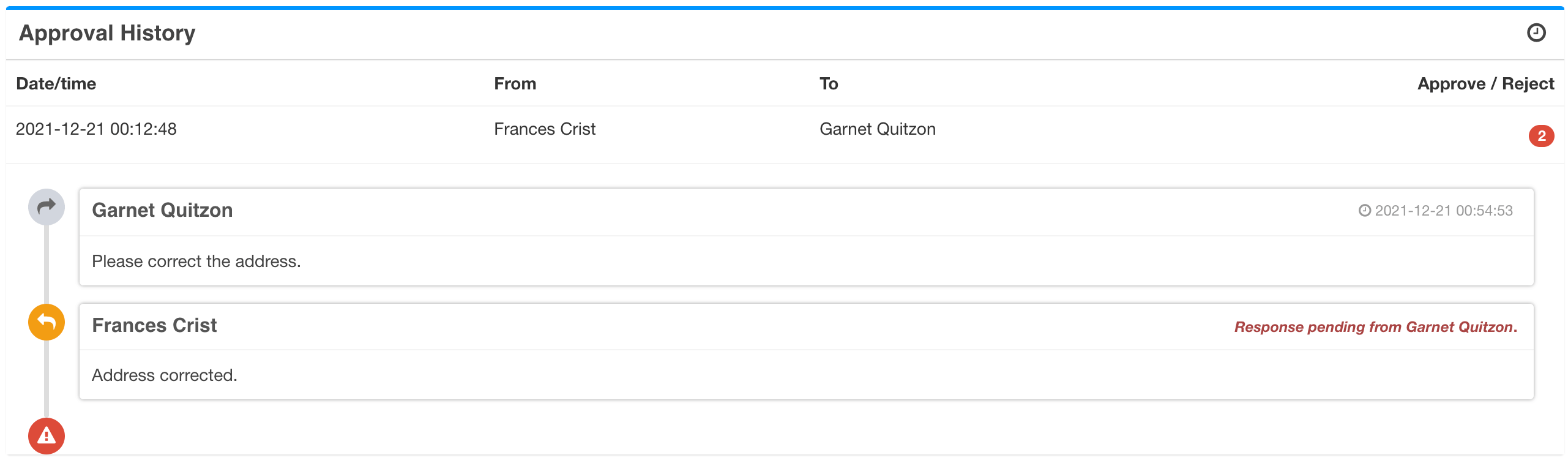
FlinkISO supports both reusable automatic approval processes and approvals selected while working with a record. The request, comments, responses and status stay connected to the document or generated form.
Define an automatic approval process
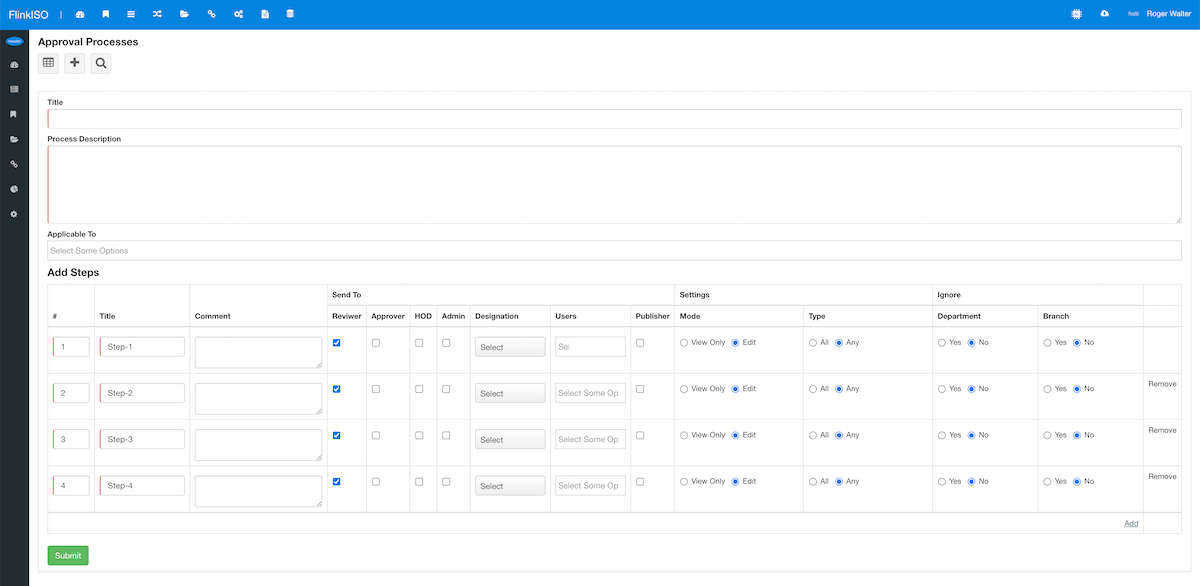
- Open Approval Processes from the main menu and create a process.
- Add the approval steps in the required sequence.
- Assign one or more users to each step.
- Choose how the step should behave when more than one approver is assigned.
- Save the process and connect it to the relevant document or form workflow.
Send a record for approval
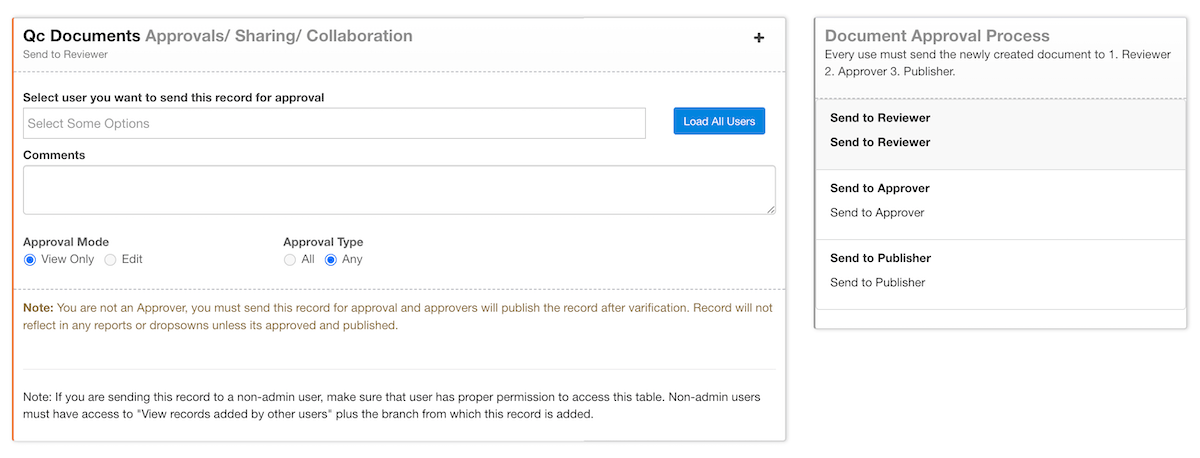
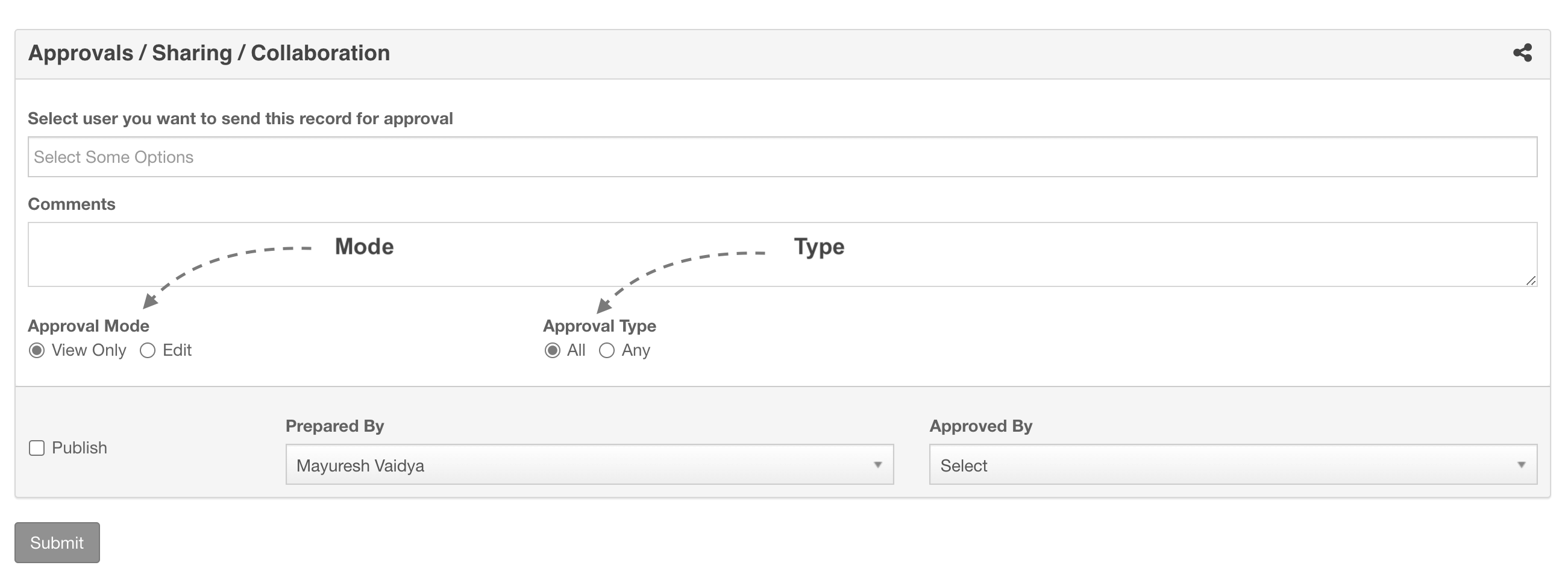
From the record’s approval panel, select the approver or process, add a useful comment and choose the approval mode and type available to the workflow.
| Setting | Effect |
|---|---|
| View Only | The recipient reviews the record without being given edit access through the approval request. |
| Edit | The recipient may edit as part of the approval activity when the record and role allow it. |
| All | Every selected approver must complete the required response. |
| Any | One of the selected approvers can complete the approval requirement. |
Approve, reject or reply
Approvers receive a dashboard and email notification when configured. Open the request, review the record and its history, then approve, reject or reply with the available response action. A reply keeps the conversation in the approval history and allows the sender to answer without losing context.


Complete and publish
When the required approvals are complete, an authorised user can publish the record. If approval is mandatory, the publish action is withheld until the workflow is satisfied. Rejected requests remain visible in the history and can be corrected and resubmitted.