A PDF template controls how form data appears when a record is exported. Templates can include a custom header, footer, logo, selected fields, labels, styles and signature areas.
Create a template
- Open PDF Templates from the application menu or use the PDF template action beside a custom form.
- Select the custom table or form the template belongs to.
- Add the document title, header, footer, logo and page settings.
- Place the available form fields in the required order.
- Apply styles and spacing, then save the template.
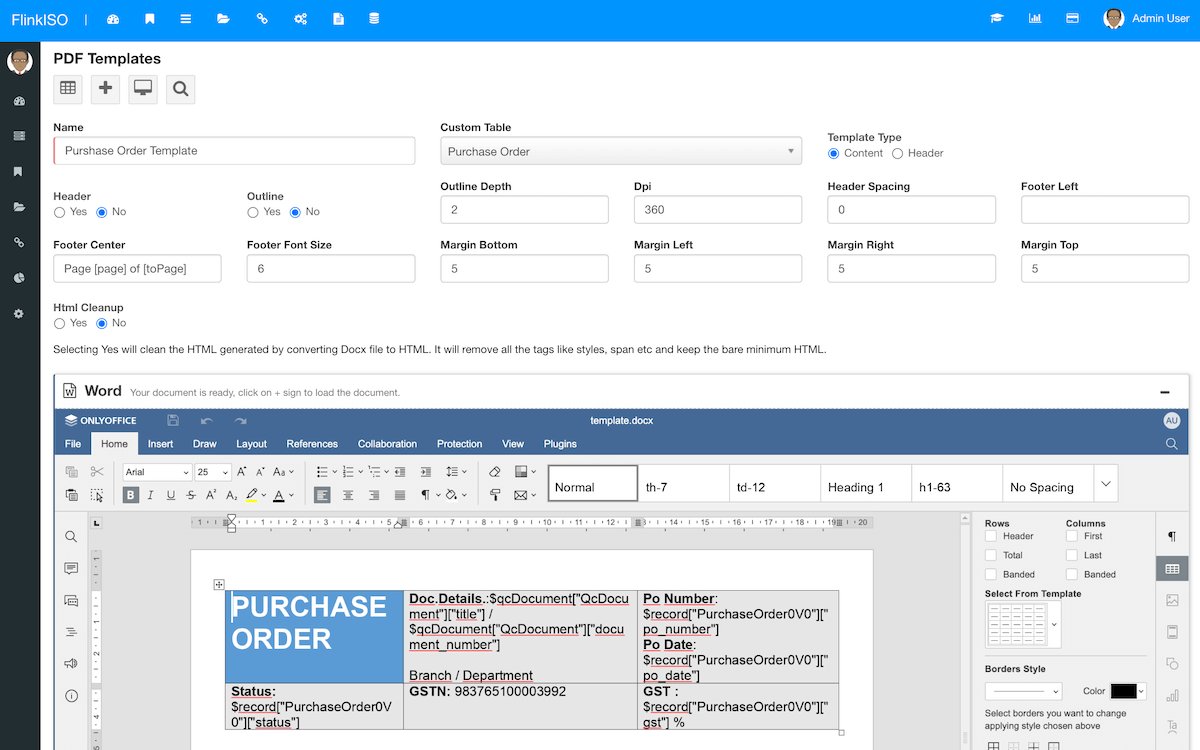
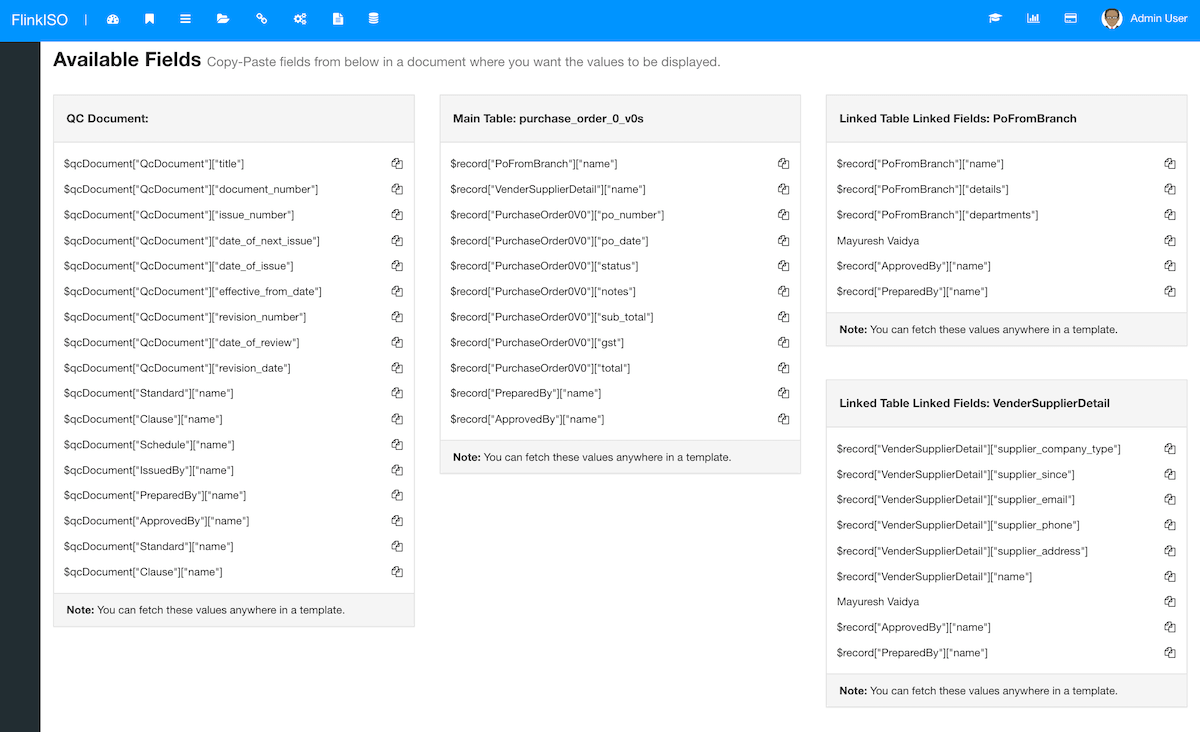
Place form fields
Use only fields that help the reader understand or verify the record. Place long text and repeatable child data in sections with enough space to expand. Keep labels consistent with the generated form.
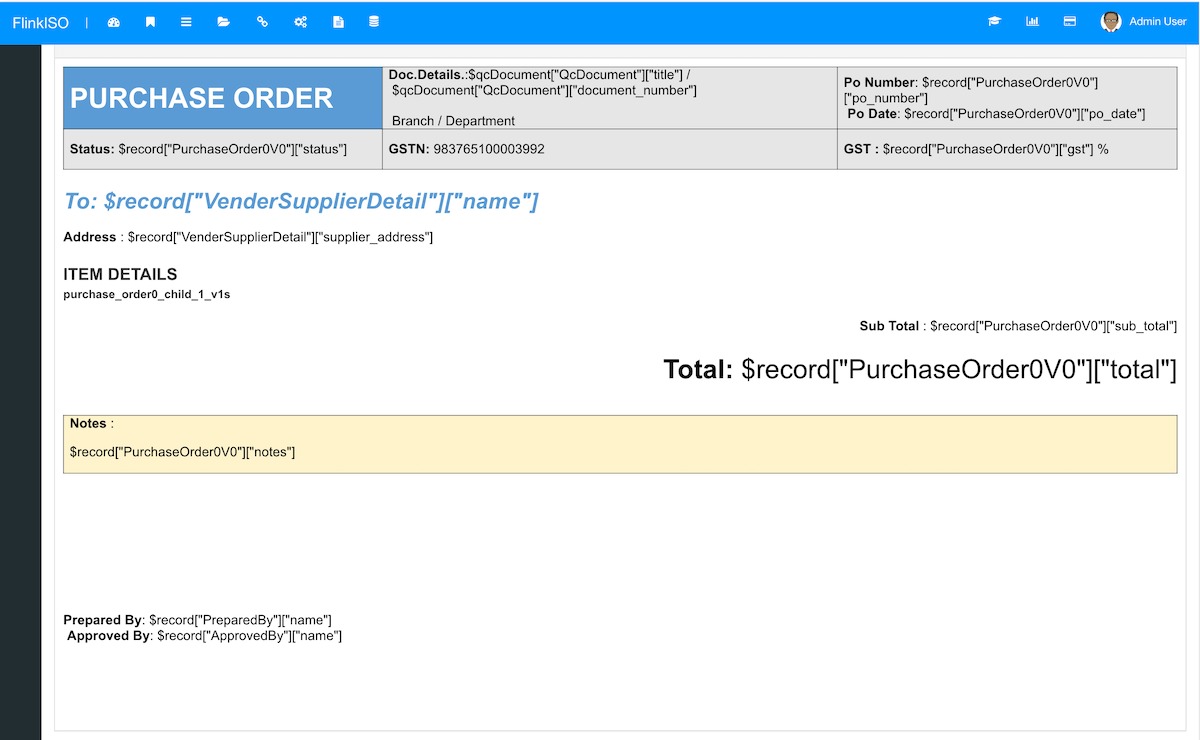
Preview and refine
Generate a preview with representative data. Check page breaks, long values, child tables, header and footer overlap and signature placement. Revise the template until the output remains readable for both short and long records.
Electronic signatures need reserved space. Test the complete signed output rather than checking only the unsigned preview.